Opening your inbox first thing in the morning can feel overwhelming. Meeting invites, follow-up requests, and “quick questions” pile up before you’ve even started your day. It’s easy to lose hours reacting to emails instead of focusing on strategic work.
Now imagine having an assistant who organises your schedule, prioritises what matters, and drafts responses before you’ve finished your first coffee. That’s exactly what Microsoft Copilot can do with Scheduled Prompts.
This guide explains what Scheduled Prompts are, why they matter, and how you can use them to transform your productivity. We’ll also share practical examples and tips to help you get started.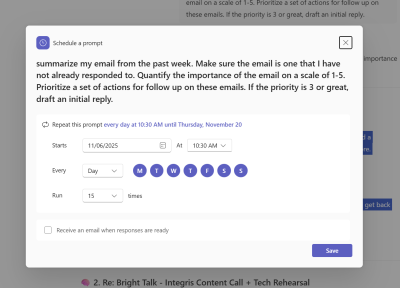
Why Scheduled Prompts Are a Game Changer
Most executives in professional services firms spend their day reacting to emails and meetings. This reactive approach leads to firefighting rather than planning. Scheduled Prompts flip that dynamic by making Copilot proactive. Instead of waiting for you to ask, Copilot briefs you automatically, generating summaries, action lists, and draft responses based on your calendar and inbox. The result? You start your day with clarity and control.
What Are Scheduled Prompts?
Scheduled Prompts allow you to automate Copilot’s intelligence. You can set prompts to run at specific times, delivering tailored insights straight to Outlook or Teams. These prompts can summarise unread emails, prioritise tasks, prepare meeting notes, and even monitor brand mentions online. Think of it as having a virtual strategic assistant who ensures you’re ready for the day ahead.
How to Set Up Scheduled Prompts in Copilot
Getting started is simple:
- Open the Copilot app or access it via Microsoft Teams.
- Create a new prompt. For example: “Summarise my unread emails from the past week, focusing on those without replies. Rank them by importance (1–5) and draft responses for anything rated above 3.”
- Schedule the prompt by hovering over it and selecting Schedule this prompt.
- Choose the time and frequency, such as weekdays at 8:30 AM.
- (Optional) Enable email notifications when the prompt runs.
You can manage all scheduled prompts in the Copilot panel under Scheduled Prompts, where you can run them on demand, pause, or delete them.
Practical Examples to Boost Productivity
Portfolio Performance Snapshot (Finance)
Prompt: “Every Monday morning, summarise our investment portfolio’s performance using the latest Excel reports and any client emails. List major gains, losses, and client concerns from last week.”
Copilot analyses data from Excel sheets (like portfolio trackers) alongside client communication in Outlook to produce a weekly performance summary. It might note, for instance, “Portfolio up 2% last week, driven by Tech stocks; Client X emailed about concerns on ABC Fund.”
Benefit: Financial advisors start the week with a clear, integrated view of portfolio metrics and client sentiments, all gathered for them automatically, enabling proactive client service.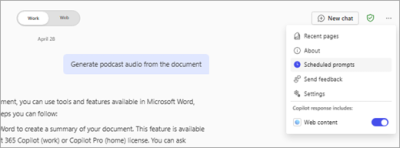
Regulatory News Radar
Prompt: “Search trusted sources (industry news, government sites) for any new laws or regulations in [your industry] this week. Summarise the changes and suggest how they might impact our firm or clients.”
Copilot scans external news feeds and internal SharePoint knowledge for relevant regulatory updates—be it a tax law change or a new compliance requirement. It then summarizes the findings in plain language and notes potential implications (e.g. “New data privacy law passed, may require policy updates”).
Benefit: Professionals in finance or accounting stay ahead of regulatory changes without manual research, ensuring they can quickly advise clients or adjust processes as needed
End of Day Follow-Up Finder
Prompt: “Every weekday at 5:30pm, check today’s emails and Teams chats for any unanswered client questions or commitments I’ve made. Generate a list of follow-up tasks with brief context for each.”
As you wrap up the day, Copilot acts like a personal assistant reviewing your communications. It might catch that you promised to send a performance report to a client in an email, or that a client asked a question in a Teams chat that hasn’t been addressed yet. Copilot compiles these into a to-do list: “Task: Send Q3 performance report to Client A (promised in 3pm email). Task: Call Client B about loan inquiry (client asked about rates in Teams chat at 11am).”
Benefit: You leave the office with a clear picture of outstanding tasks. By automatically surfacing what you might have missed, Copilot ensures timely follow-ups and exceptional client service, without relying on memory or manual tracking.
Behind the Scenes: Workflows Powering Prompts
Scheduled Prompts use the Workflows app in Teams, built on Microsoft’s Power Platform. Microsoft offers a growing catalogue of pre-built workflows, such as:
- Prepare for My Day
- Prepare for My Week
These workflows automatically summarise meetings, surface important emails, and deliver daily or weekly recaps straight to Teams or your inbox.
For example, the Prepare for Next Week workflow runs every Friday, generating a summary of upcoming meetings, important messages, and recent documents, all delivered as a Copilot chat.
Why This Matters for Your Business
For decision-makers in sectors like Accountancy, Law, and Financial Services, time is money. Scheduled Prompts help you:
- Reduce time spent on low-value tasks.
- Improve responsiveness to clients.
- Ensure compliance by staying on top of critical communications.
By integrating Copilot into your workflow, you gain a competitive edge and free up time for strategic priorities.
Tips for Success
- Start small: Create one daily and one weekly prompt to see immediate benefits.
- Refine over time: Adjust prompts based on your priorities.
- Link to resources: Use Copilot to surface relevant files from OneDrive or SharePoint.
- Combine with Cyber Security best practices: Ensure sensitive data is handled securely when automating workflows.
Ready to Take Control?
Stop treating Copilot as a novelty and start using it as your assistant. Create two scheduled prompts, one daily and one weekly, and see how it transforms your workflow.
Would you like to know more about how to use Copilot? Contact Pro Drive IT to learn how we can help you integrate Microsoft Copilot and optimise your IT support and cyber security strategy.